




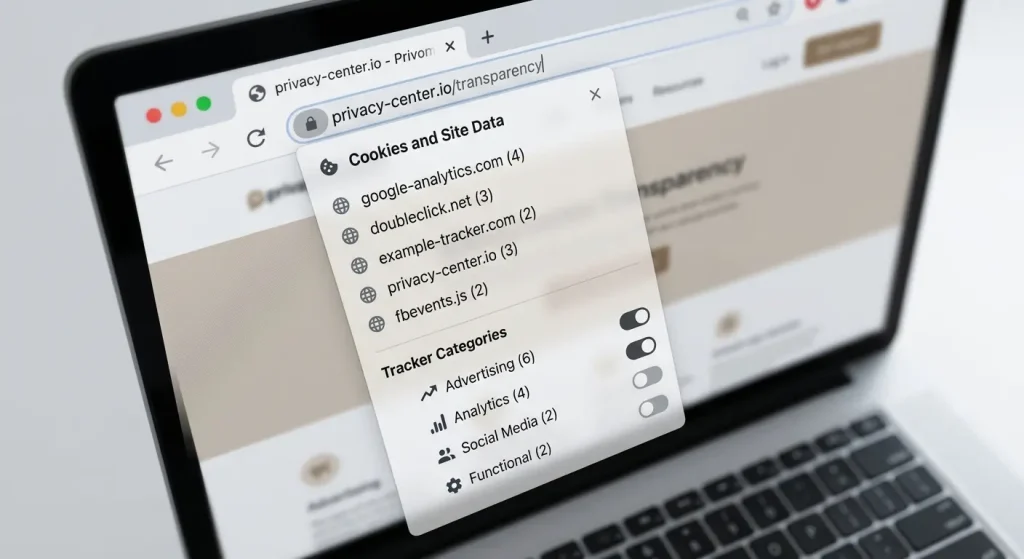
Every website you visit is watching you, and Chrome gives you the tools to watch back. The fastest way to see what is tracking you right now: click the icon to the left of any website’s URL in Chrome, select “Cookies and site data,” and you will see a live list of every tracker and cookie active on that page. Most people have never done this. Most people would be surprised by what they find. This guide walks through every method available, from the built-in one-click approach to the deeper tools Chrome hides in plain sight.
Tracking is not one thing. It is a collection of different technologies working together, most of them invisible, all of them designed to collect information about your behavior online.
Here is what is actually happening when you land on a typical website:
Cookies are small text files stored in your browser. First-party cookies are set by the website you are visiting and are generally harmless. They remember your login, your shopping cart, and your preferences. Third-party cookies are set by external companies (advertisers, analytics services, social platforms) and follow you across multiple websites, building a profile of your browsing behavior over time.
Tracking pixels are tiny invisible images, often just one pixel, embedded in a webpage or email. When your browser loads the page, it fetches the image from a remote server. That request tells the server your IP address, your browser type, the time you visited, and often much more.
Fingerprinting is more sophisticated and harder to block. It collects dozens of data points about your browser and device screen resolution, installed fonts, browser plugins, time zone, graphics hardware, and combines them into a unique identifier. You can clear your cookies every day, and a fingerprinting tracker will still recognize you.
Session replay scripts record your actual mouse movements, scroll behavior, and clicks on a page and transmit that data to a third party. Companies like Hotjar and FullStory sell this capability to website owners for UX research, but it means someone is, in effect, watching over your shoulder as you browse.
Understanding which of these is active on a page changes how you interpret what you find.

The standard response to tracking concerns is “I have nothing to hide.” That framing misses the point.
Tracking is not primarily about finding incriminating information. It is about building behavioral profiles that are used to influence decisions on what prices you see, what content appears in your feed, what insurance premiums you are quoted, what job listings you are shown. The data collected about you is bought, sold, and combined across brokers in ways that the original website’s privacy policy never fully discloses.
A few things most people do not know about the tracking data being collected:
Knowing what is tracking you is the first step toward making informed choices about it.
This takes about ten seconds and requires no technical knowledge or extensions.
Step 1: Open Chrome and visit any website you want to inspect.
Step 2: Look at the address bar. To the left of the URL, you will see a small icon that looks like a set of sliders or adjustment controls (Chrome updated this icon in recent versions; older versions show a padlock). Click it.
Step 3: A small panel opens. Click “Cookies and site data.”
Step 4: A new panel appears showing two categories:
Click “Allowed” and expand the list. You will see entries organized by domain. The website itself will have one entry. Every other domain listed is a third-party or an external company that is loading code on this page.
What to look for:
google-analytics.com or googletagmanager.com Google Analytics is tracking your sessionfacebook.com or connect.facebook.net Meta’s tracking pixel is active even if you are not on Facebookdoubleclick.net Google’s advertising networkhotjar.com or fullstory.com session replay tools recording your behaviorThis method shows you trackers that are already running. It does not require any technical knowledge to use.
This gives you a broader view of your tracking exposure across all sites, not just the one you are currently visiting.
Step 1: Open Chrome and go to chrome://settings/privacy or paste this directly into your address bar and press Enter.
Step 2: Once the Third-party cookies page opens, you will see two options:
You will also notice a toggle labelled “Allow related sites to see your activity in the group“, which lets a company that owns multiple websites share cookie data across all of them. Keep this off for tighter privacy.
Further down under Advanced, you will find “Send a Do Not Track request with your browsing traffic”; this is worth enabling, though note that websites are not legally required to respect it.
Step 3: Scroll down to “See all site data and permissions” and click it.
Step 4: Use the search bar at the top to search for any website. Chrome will show you every cookie that the site has stored in your browser, including when it was created and when it expires.
This is particularly revealing for sites you visit regularly. A major news site may have set dozens of persistent cookies across multiple advertising networks, all stored quietly in your browser, some set to expire years from now.
Step 5: You can delete individual cookies or all cookies from a specific domain directly from this screen.
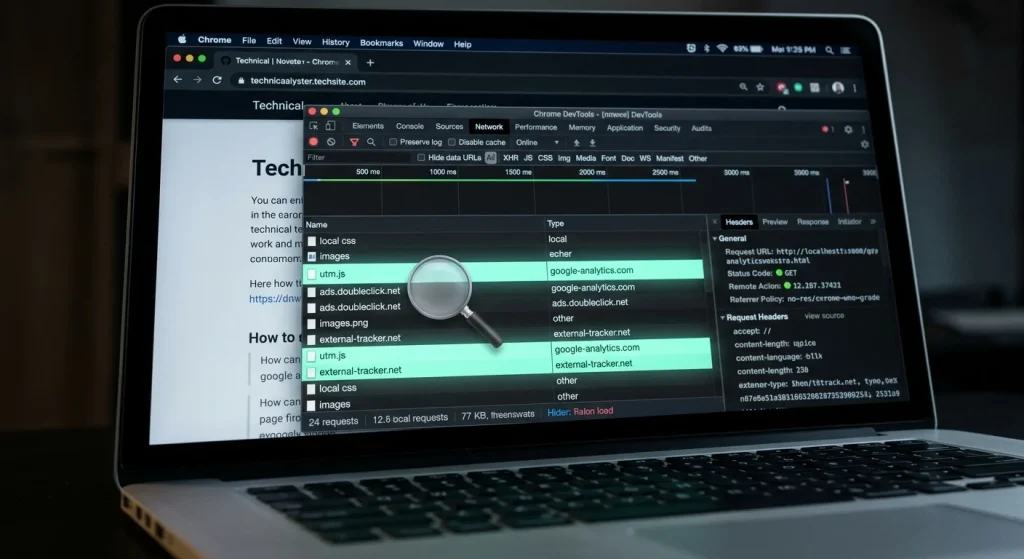
This method goes deeper and shows you every network request a page makes, not just the cookies already set, but the live data being transmitted as you browse. It is not complicated, but it looks technical at first glance.
Step 1: Visit the website you want to inspect.
Step 2: Press F12 on Windows or Cmd + Option + I on Mac to open DevTools.
Step 3: Click the “Network” tab at the top of the DevTools panel.
Step 4: Refresh the page with Ctrl+R (or Cmd+R on Mac). The Network tab will fill with every request the page makes as it loads.
Step 5: In the filter bar, type “third-party” or use the “Domain” column to scan for external requests. Any request going to a domain different from the website you are visiting is a third-party.
Step 6: Click on any individual request to see the headers. Under the “Request Headers” section, look for a field called Cookie. This shows exactly what data is being transmitted with that request.
Step 7: For a cookie-specific view, click the “Application” tab in DevTools, then expand “Cookies” in the left panel. Here you will see every cookie currently stored for this site, its value, its expiry date, and whether it is marked as HttpOnly or Secure.
What the columns mean:
| Column | What It Tells You |
|---|---|
| Name | The cookie’s identifier |
| Value | The data stored (often encrypted or hashed) |
| Domain | Which domain set the cookie |
| Expires | How long until the cookie deletes itself |
| HttpOnly | If checked, JavaScript cannot access this cookie (more secure) |
| SameSite | Controls whether the cookie is sent with cross-site requests |
A cookie with an expiry date years in the future and a third-party domain is almost certainly a tracking cookie.
For ongoing visibility without opening DevTools every time, browser extensions display tracker information automatically as you browse.
uBlock Origin: The most effective content blocker available for Chrome. It blocks ads, trackers, and malicious scripts using regularly updated filter lists. The extension icon shows you the number of blocked requests on each page. Click it to see a breakdown by category. Free, open source, and actively maintained.
Ghostery: Designed specifically for tracker visibility. It shows you a panel of every tracker detected on the page, organized by category (advertising, analytics, social media, and essential). Green means blocked, red means active. It also gives each tracker a “trust rating” based on its data practices. The free tier is sufficient for most users.
Privacy Badger: Built by the Electronic Frontier Foundation. Rather than using a blocklist, it learns which domains are tracking you across multiple sites and blocks them automatically over time. The more you browse with it installed, the smarter it gets. Completely free, no premium tier.
DuckDuckGo Privacy Essentials: Installs a tracker blocker and also grades each website with a Privacy Grade (A through F) based on the number and aggressiveness of trackers present. Makes the data easily readable for non-technical users.
Which one to use:
| Extension | Best For | Free? | Approach |
|---|---|---|---|
| uBlock Origin | Maximum blocking effectiveness | Yes | Blocklist-based |
| Ghostery | Visibility and transparency | Yes (core) | Categorized tracker display |
| Privacy Badger | Learning-based protection | Yes | Behavioral detection |
| DuckDuckGo Privacy Essentials | Simple grading system | Yes | Privacy scoring |
Most privacy-focused users install both uBlock Origin (for blocking) and Ghostery or Privacy Badger (for visibility), since they serve complementary purposes.
When you start looking at trackers, the numbers can be alarming. Here is how to read what you find without overreacting.
0 to 5 third-party domains: Clean site. Either a well-built independent site or one that has consciously minimized third-party loading.
5 to 15 third-party domains: Typical for blogs and content sites monetizing through advertising. Google Analytics and one or two ad networks are standard at this level.
15 to 40 third-party domains: Common on major news and media websites. You will find multiple ad exchanges, analytics tools, social sharing widgets, and often session replay scripts at this level.
40+ third-party domains: The upper end of the tracking spectrum. Certain heavily monetized websites load an extraordinary number of third-party scripts. Each one represents an external company receiving data about your visit.
The specific names to be most aware of:
Seeing trackers is informative. Doing something about them is optional but straightforward.
Block third-party cookies in Chrome: Go to chrome://settings/privacy, select “Third-party cookies,” and enable blocking. This prevents the most common form of cross-site tracking. Some sites will break (paywalls, social logins) but most work normally.
Use a content blocker: uBlock Origin blocks the majority of trackers before they load. You will not see them in DevTools because the requests are cancelled before they leave your browser.
Use Private Browsing mode for sensitive searches: Incognito does not make you anonymous, but it prevents cookies from persisting after you close the window. Useful for searches you do not want tied to your long-term profile.
Clear stored cookies periodically: Go to chrome://settings/privacy → “Delete browsing data” → select “Cookies and other site data” → choose a time range. Monthly clearing removes tracking identifiers that have accumulated.
Consider a privacy-focused DNS: Services like Cloudflare’s 1.1.1.1 with filtering or NextDNS block tracker domains at the network level before your browser even makes the request.
Google has been attempting to phase out third-party cookies in Chrome for several years, having delayed the process multiple times under pressure from advertisers. As of 2025, the most current direction is to give users more direct controls rather than eliminating third-party cookies outright, meaning the default experience remains heavily tracked unless you actively change your settings.
The advertising industry is simultaneously developing new fingerprinting techniques specifically designed to withstand cookie blocking. Tools like browser fingerprinting, device graph matching, and cohort-based tracking (grouping you with similar users rather than tracking you individually) are becoming more prevalent as cookies lose effectiveness.
This makes browser-level tools extensions, DevTools visibility, and manual settings more important, not less, as the technical landscape shifts.
You have been sharing your browsing behavior with dozens of companies on every page you visit. The tools to see exactly what is being collected and to stop most of it have been in your browser the whole time.
Partially. Incognito prevents cookies from being saved after you close the window, so tracking identifiers do not persist between sessions. However, websites can still fingerprint your browser, see your IP address, and track you within a single session. Your ISP and employer can also see your traffic in Incognito mode. It is privacy from your local device, not from the internet.
Most websites work normally with third-party cookies blocked and tracker extensions installed. The main exceptions are paywalls that use third-party authentication, some social login buttons (“Sign in with Google”), and embedded social media widgets. These can usually be worked around by logging in directly rather than using a social sign-in option.
Yes, in most jurisdictions, with disclosure. Websites are generally required to disclose session recording in their privacy policy, and many do so in boilerplate language that few people read. If you see Hotjar, FullStory, or Microsoft Clarity in a site’s tracker list, your mouse movements and scroll behavior are being recorded and transmitted to a third party.
Chrome’s Enhanced Safe Browsing mode (under Settings → Privacy and Security → Security) improves protection against malicious sites and downloads but does not specifically block tracking scripts. It is worth enabling for security reasons, but it is not a privacy tool in the tracking sense.
Yes, and some do. Certain sites check whether their analytics scripts have loaded and if not, display a message asking you to disable your ad blocker. This is more common on advertising-heavy sites. Most sites do not check, and those that do rarely enforce it beyond a request.
Install uBlock Origin from the Chrome Web Store. It is free, takes two minutes to install, requires no configuration, and immediately blocks the majority of trackers and ads on every site you visit. No other single change delivers as much privacy improvement with as little effort.








Comments are off for this post.